Chapter 8 of 11 · 20 min
Suppliers, orders and what you owe
Record who you buy from, order stock, receive it — and understand the one moment that creates a debt.
Your suppliers are on file with their terms and currency, a delivery has been received against an order, and Payables shows what you owe and how old it is.
This is the other end of the shop from the till. It has one sentence worth remembering above all the rest, and it is at the bottom of this chapter: it is the delivery that creates the debt, not the order.
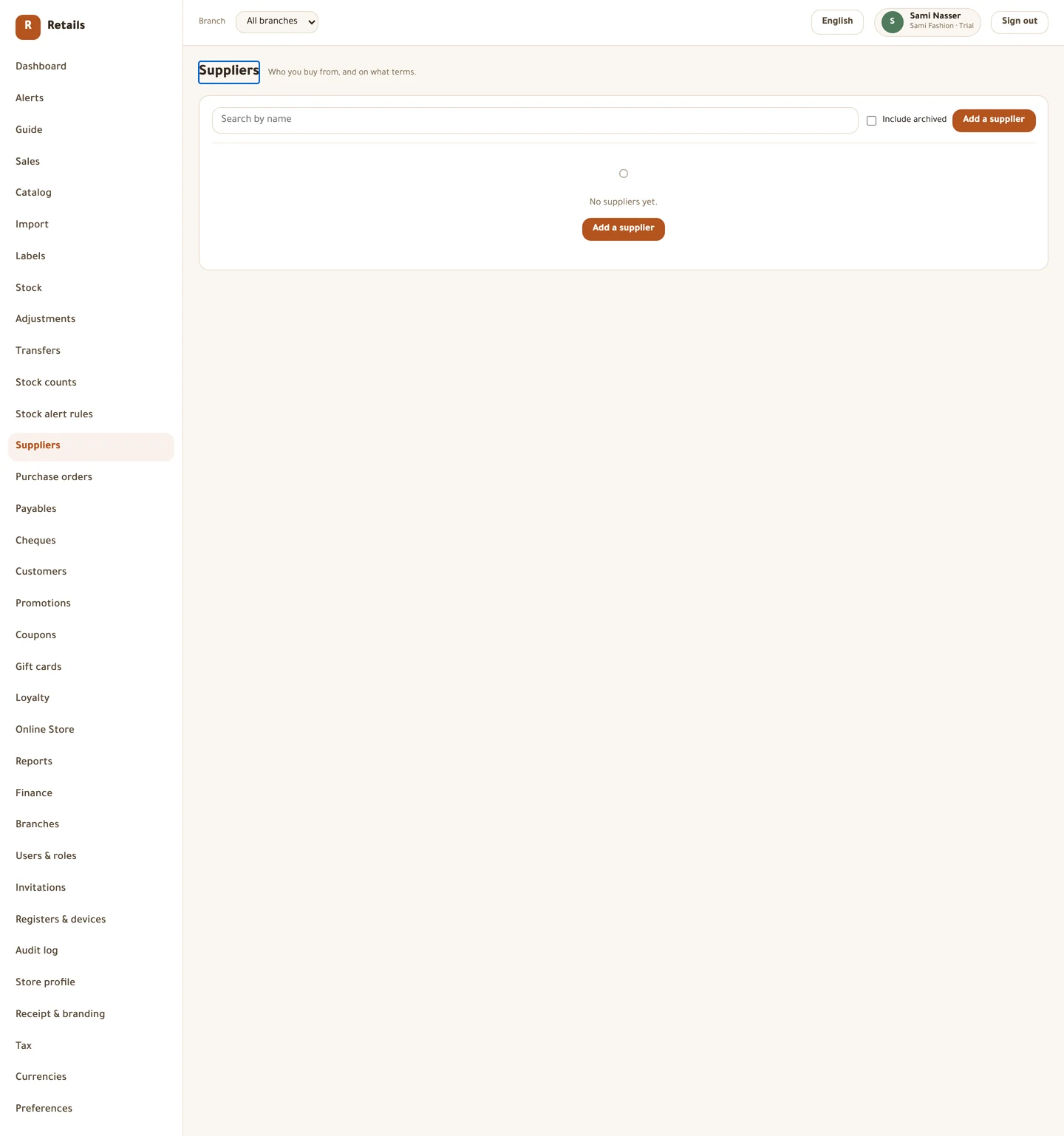
Add the supplier
Start with who you buy from and on what terms. Two of these fields do real work later and are worth a moment now.
Payment terms is days from the invoice date until payment is due — zero means due on receipt. It is what puts an unpaid delivery into the right ageing bucket on the Payables screen.
Currency is what this supplier invoices in. If they bill you in dollars, set it here: the debt is booked in their currency and converted to your base currency at the rate on the day the goods arrived, not at today's rate.
Do this
- Open Suppliers in the menu.
- Press Add a supplier.
- Type the name, then Phone, Email and Tax number.
- Set Payment terms — it starts at 30 days.
- Set Currency if they do not invoice you in shekels.
- Fill in Opening balance if you already owed them when you started.
- Press Save.
Order what you need
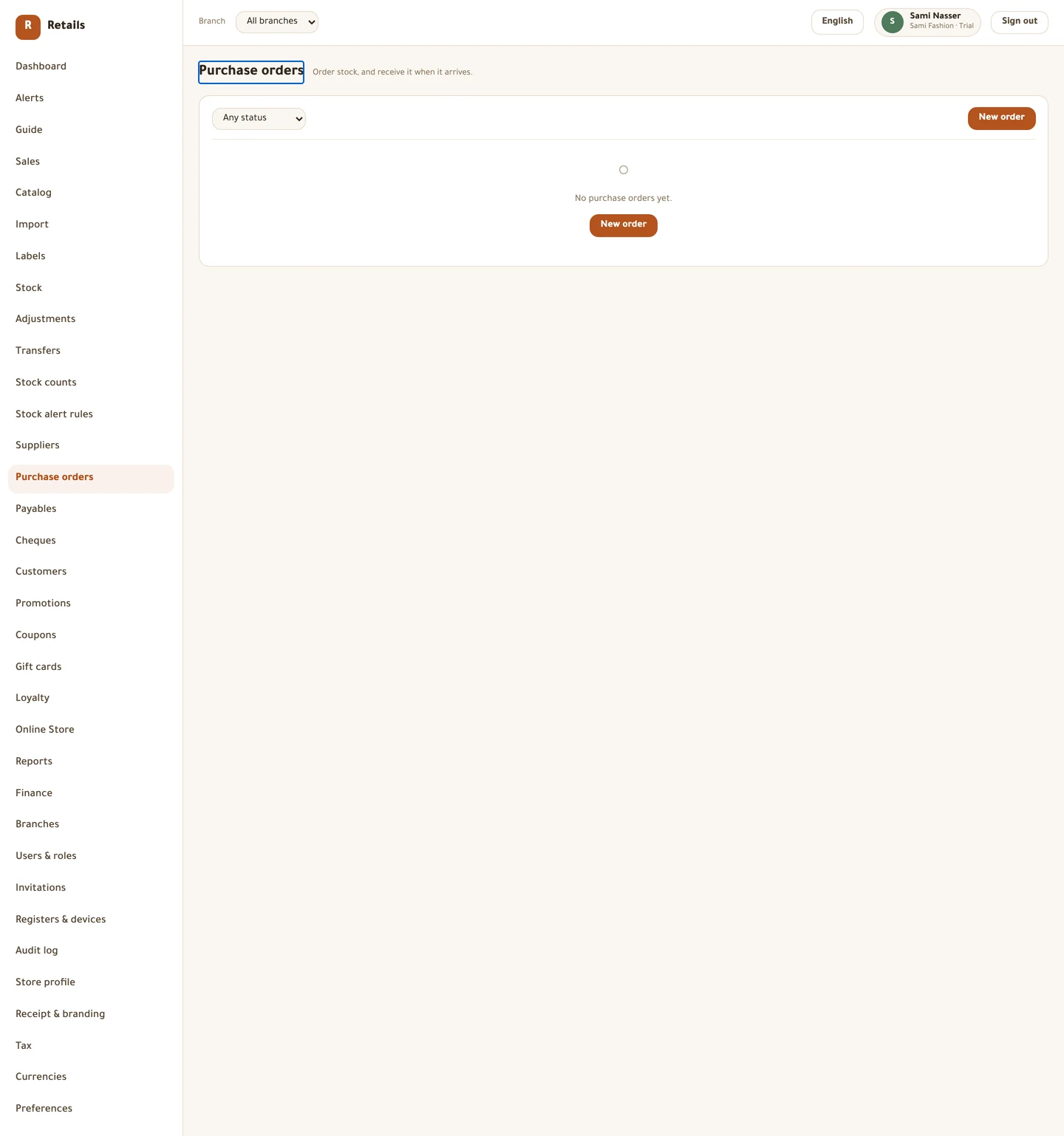
An order is a record of what you asked for. Creating it changes nothing, and sending it changes nothing either — not your stock and not your accounts.
Choose the branch the goods are actually coming to. You can only receive into a branch you have access to, so a delivery pointed at the wrong branch has to be sorted out before it can be received.
Do this
- Open Purchase orders in the menu, then New order.
- Pick the supplier under Choose a supplier….
- Set Deliver to — the branch the goods will land in.
- Search in Add an item and add each line.
- Type the quantity under Ordered and the price under Agreed cost.
- Press Create order to save it as a draft.
- Press Send when it goes to the supplier.
Receiving is what creates the debt
Open the order when the goods turn up and press Receive. Each line asks how many arrived, and the box defaults to what is still Outstanding, not to what was ordered — defaulting to the ordered figure is how a second delivery quietly becomes a double delivery.
Then type the cost you were actually charged into Actual cost. If it differs from the agreed price the screen flags the line with differs from agreed. Take that moment seriously: this number is what every margin figure in the shop is built on from here.
The instant you confirm, three things happen together. Stock goes up. Your moving-average cost is recalculated. And a debt to that supplier is posted.
Do this
- Open the order and press Receive.
- Check each line's Receiving now figure against the box in front of you.
- Type the real price into Actual cost.
- Confirm.
What you owe, and how old it is
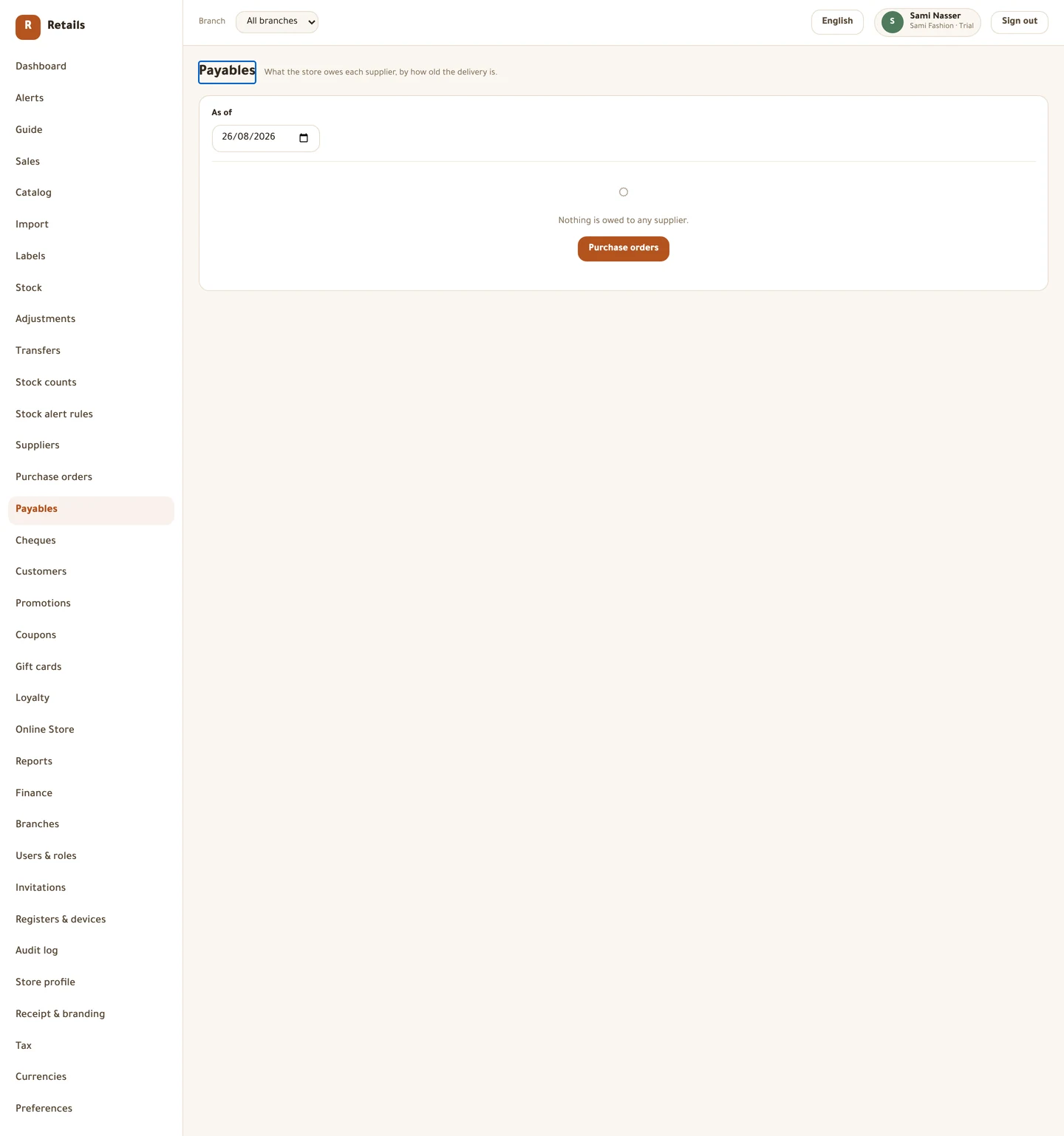
Payables is every unpaid delivery, per supplier, aged into Current, 30 days, 60 days and 90+ days. The age is counted from the delivery, using the payment terms you set on the supplier.
On account is its own column and is never quietly subtracted from the newest bucket. That is money you paid or were credited with no delivery to sit against — it has no age, so it does not belong in an age bucket. Netting it away is the standard way this report lies to a shopkeeper.
Paying a supplier
Open a supplier's statement from Payables and use Record a payment. Choose the Method — Cash from drawer, Bank transfer or Cheque — type the Amount, and decide how it lands.
You can let it settle the oldest open deliveries, or allocate it by hand line by line. Anything you do not allocate is carried as a credit against the next delivery, and the screen tells you how much before you commit.
If you paid the supplier in cash out of a till, the money already left through that shift's pay-out and is already on that Z-report. Name the Till pay-out voucher here and it records who it went to — it does not move the money a second time.
Do this
- Open Payables, then the supplier.
- Press Record a payment.
- Choose the Method and type the Amount.
- Set the Allocation, or leave it to carry as a credit.
- Press Record payment, then Yes, record it.
The cheque register
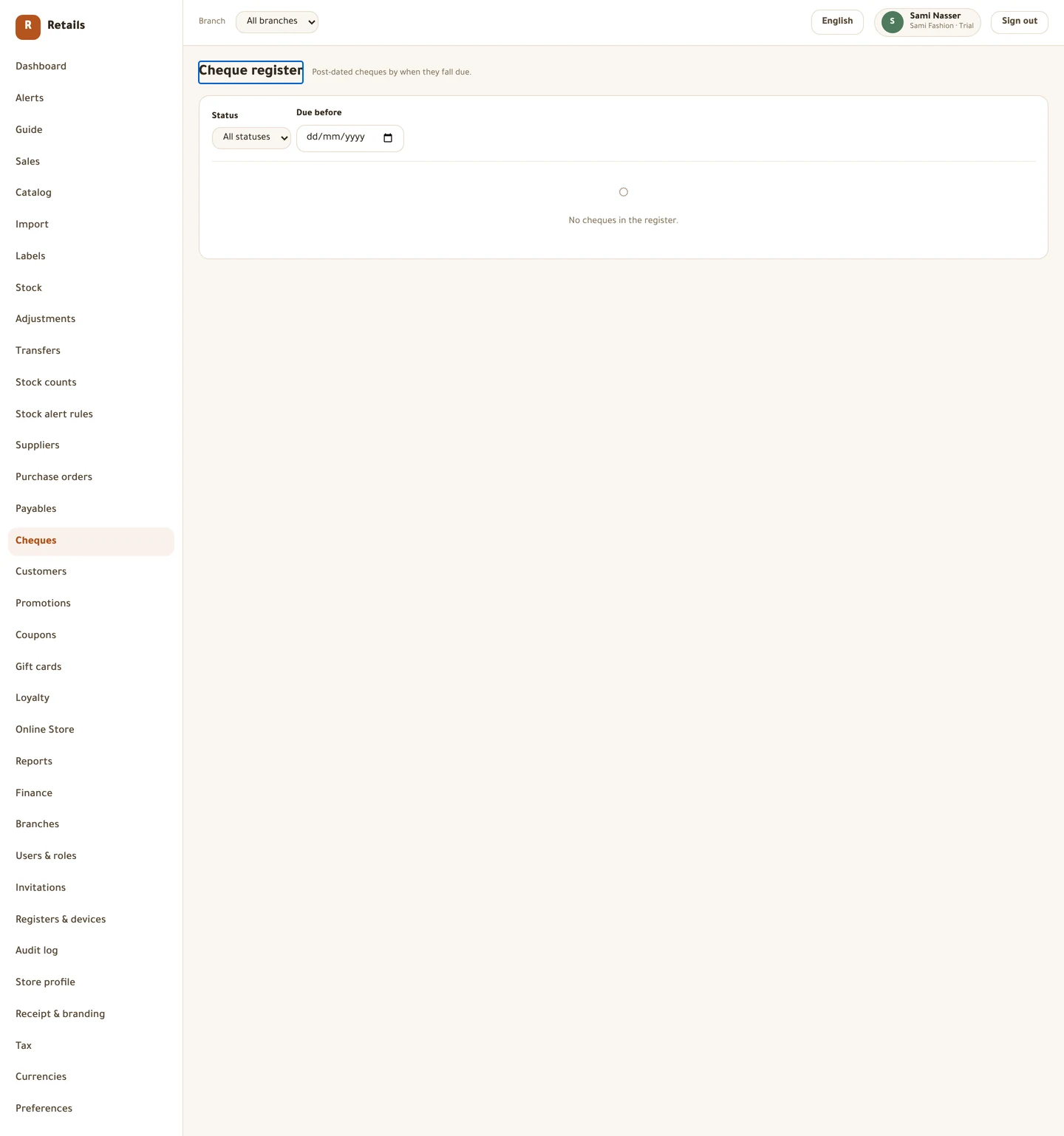
Post-dated cheques are ordinary here and they get their own screen, ordered by when they fall due. A cheque moves forward through Mark presented and Mark cleared, and it never moves backwards.
Cheques falling due inside the next week are raised in Alerts, so the register is not something you have to remember to open.
Two things this part cannot do yet
There is no screen for returning goods to a supplier. The accounting behind it is built and the rest of the supplier ledger is complete, but nothing in the back office starts one.
The supplier statement prints from your browser. There is no PDF built by the server, so what you hand a supplier is whatever your browser's print dialog produces.
Before you move on
- At least one supplier saved with payment terms and currency
- Opening balances entered for suppliers you already owe
- An order created, sent and received
- Actual cost typed at receiving rather than left at the agreed figure
- Payables checked after receiving, not before
- You know a payment is corrected by its reverse, never edited
Every picture on this page is a photograph of the real screen, taken from a running store.