Chapter 9 of 11 · 25 min
Customers, offers, gift cards and loyalty
Keep a customer list that is worth having, build an offer, and understand which of these four things reaches the till today.
You have a customer list with real phone numbers on it, one offer built and tested against a cart, and a clear picture of what a customer will and will not see at the counter.
Four separate things live under this chapter: customers, automatic offers, coupon codes, gift cards and a points programme. They are built and they work in the back office.
The customer list
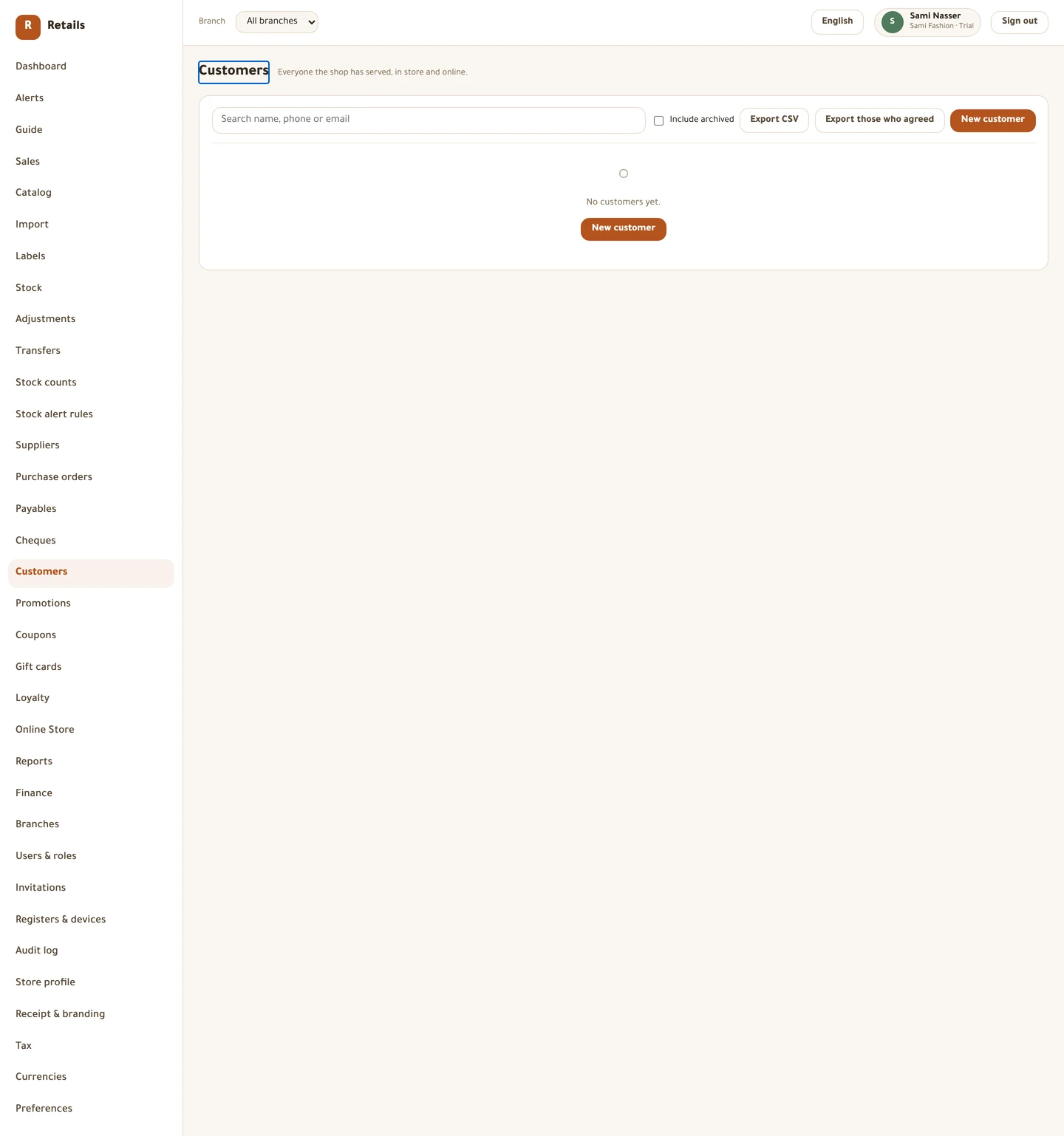
Search takes a name, a phone or an email. Phone matching ignores spaces, dashes and the country code, so +970 599 111 222, 0599-111-222 and 599111222 all find the same person. Write numbers however you like.
If you save someone on a phone number that is already used, the screen stops and shows you who has it. That is a warning, not a refusal — press Save anyway — the family shares a number when it really is the sister, the husband or the shop next door.
There are two exports: Export CSV for the list you are looking at, and Export those who agreed for the marketing list. Both are recorded in the audit log, because a customer list leaving the building is an event and not a read.
Do this
- Open Customers in the menu.
- Press New customer.
- Type the name and phone.
- Tick Agreed to marketing only if they actually said yes — the date is stamped for you.
- Press Save.
Store credit is money you owe
Open a customer and you get their purchases, their value to the shop, and their store-credit ledger. The balance shown is the sum of the movements, never a stored number — this is money the shop still owes, and store credit never expires.
Add or take back credit is the one credit movement with no document behind it: a person deciding. The Reason is required and it is kept on the ledger entry and in the audit log. A positive amount grants credit; a negative one takes back credit granted in error.
Archiving is refused while a customer holds credit. Erasing personal details at their request overwrites the name, phone, email, notes and every address line — and leaves the documents and the credit alone. Erasing a name does not settle a debt.
Building an offer
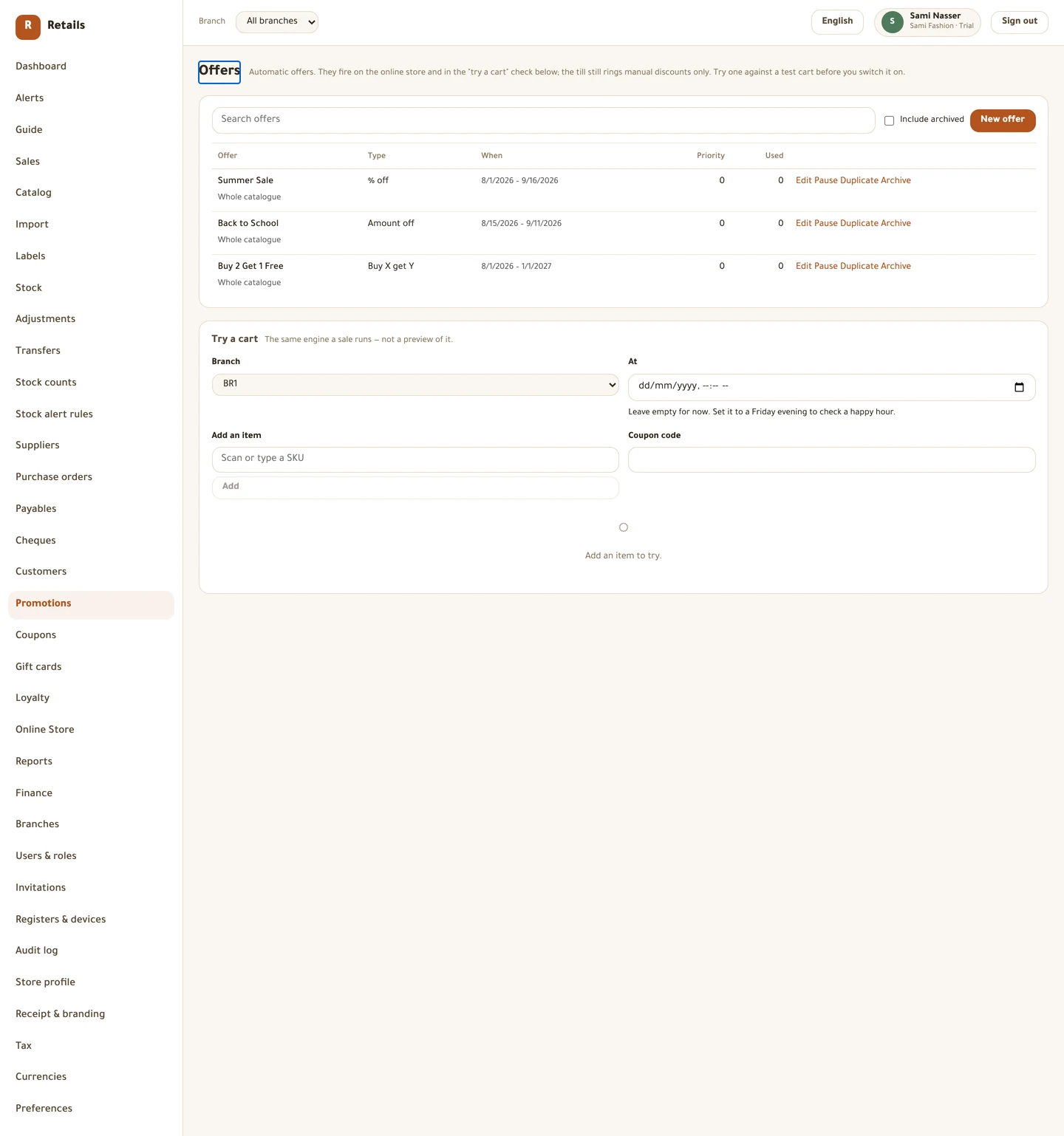
Name it in Arabic and in English — the Arabic name is what a customer would be told. Then pick the type: % off, Amount off, Fixed price, Buy X get Y, Bundle price, Spend threshold or Second unit % off. Each one has a line under it explaining exactly how it divides the discount.
What it applies to takes categories and brands. Pick nothing and it applies to the whole catalogue, which is almost never what you meant. Branches are separate: they decide where an offer runs, not what it discounts.
Try a cart at the bottom of the same screen is not a preview. It runs the same engine a real sale runs, over a basket you build, and it lists every offer that did not apply with the reason for each one — paused, not started, wrong day, outside its happy hour, needs a coupon code.
Do this
- Open Promotions in the menu, then New offer.
- Fill Name (Arabic) and Name (English), then pick the type.
- Set Starts, Ends, Days and a happy hour if you want one.
- Choose What it applies to — categories, brands, or nothing for everything.
- Set Where: till only, online store only, or both.
- Save, then build a basket under Try a cart and press Try it.
- Press Resume when you want it live.
An offer does not reach the till
The register applies manual discounts only — the ones a cashier types in by hand, line by line or on the whole sale. It does not evaluate your offers.
The other place an offer can fire is the online store, and there is no online store. So today an offer fires in Try a cart and nowhere a customer stands.
Build offers if you want to see the builder, check the arithmetic and have them ready. Do not put a customer in front of a counter expecting a discount to appear on its own.
Coupons
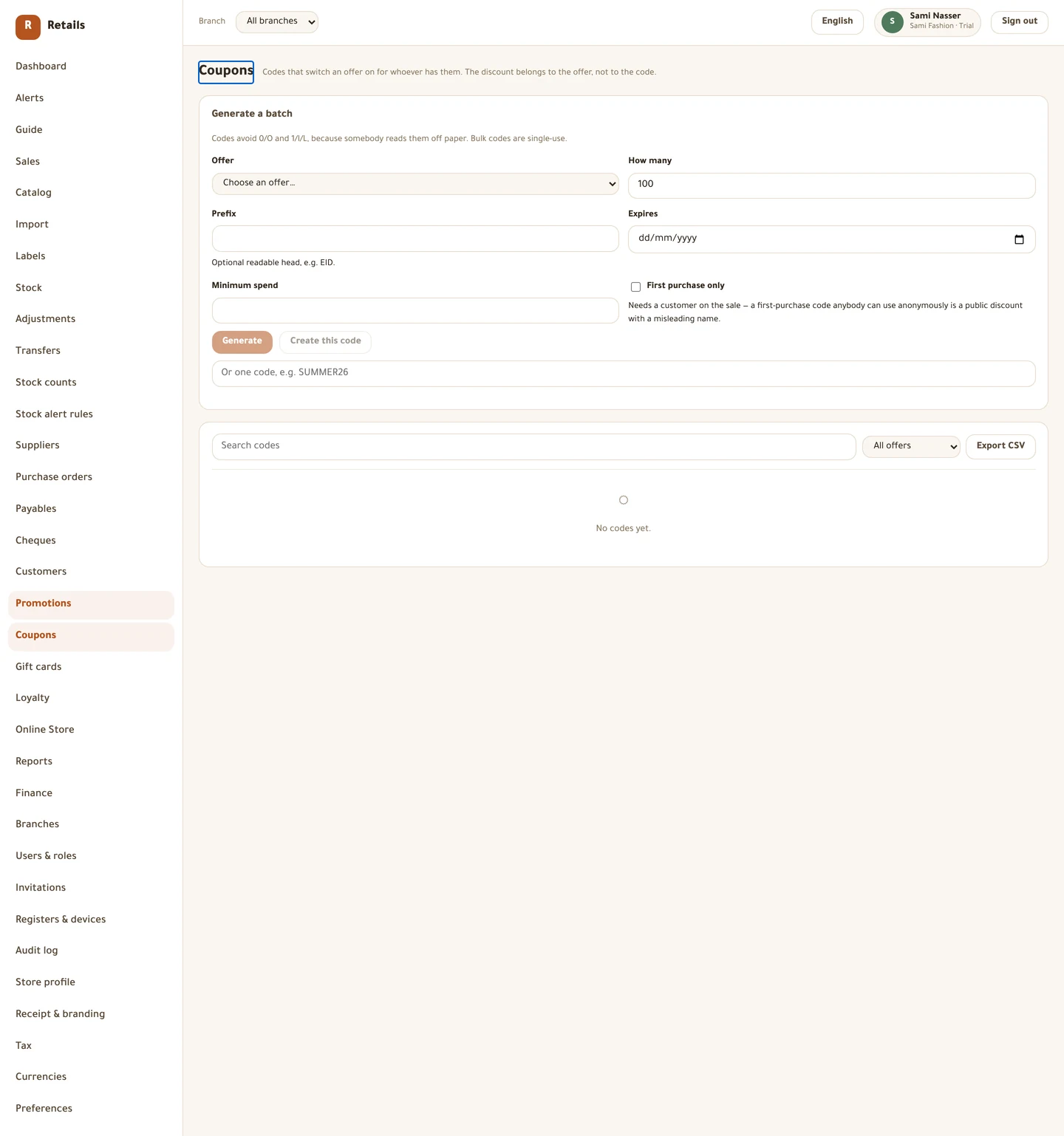
A coupon carries no discount of its own. It switches an offer on for whoever holds the code. So the order is always: build the offer first, tick Only with a coupon code on it, then come here and generate codes for it.
Codes avoid the characters 0 and O, and 1, I and L, because somebody reads them off a piece of paper. Bulk codes are single-use by definition — a batch whose members can each be used ten times is one code with extra steps.
Export CSV gives you the list to print or send, and Redemption log shows which code was used on which receipt and when.
Do this
- Open Coupons in the menu.
- Pick the offer under Choose an offer….
- Type a Prefix if you want a readable head, such as EID.
- Set How many and press Generate.
- Or type one code in the box and press Create this code.
- Press Export CSV to get the list out.
Gift cards
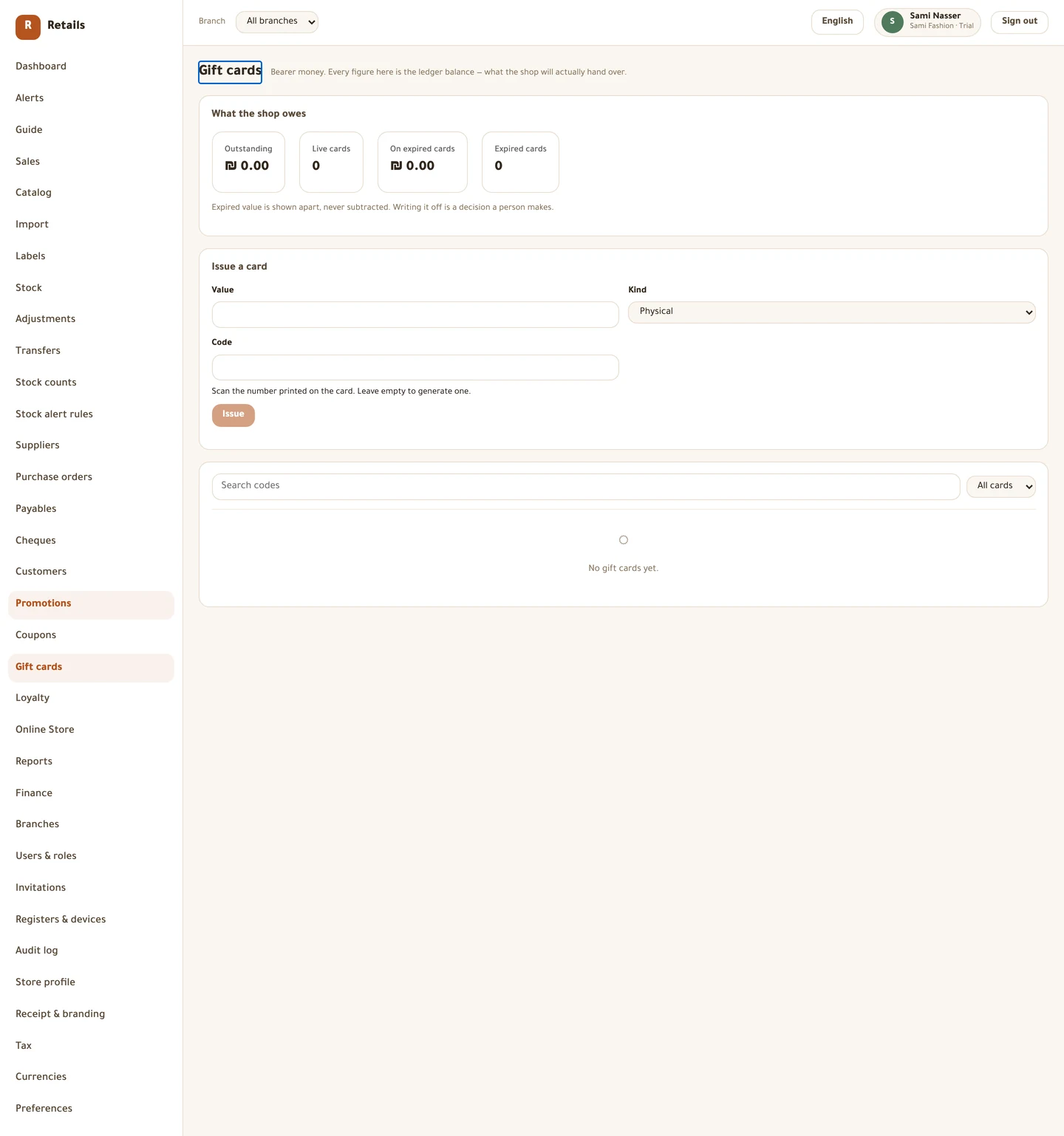
A gift card is bearer money: whoever holds it can spend it, and the shop owes the balance until they do. Every figure on this screen is the ledger balance — what the shop will actually hand over — never a cached number.
Issue a card as Physical or Digital. For a physical card, scan the number already printed on it; leave the code empty and one is generated. A digital card needs an email or a phone, because a card nobody can be told about is a charge for nothing.
Void stops a card being spent. It does not clear the balance — the shop still owes that money until a person decides otherwise. Replace forwards a balance onto a new card, once.
Do this
- Open Gift cards in the menu.
- Press Issue a card.
- Choose Physical or Digital and set the Value.
- Scan the printed Code, or leave it empty.
- For a digital card, fill Send to email or Send to phone.
- Press Issue.
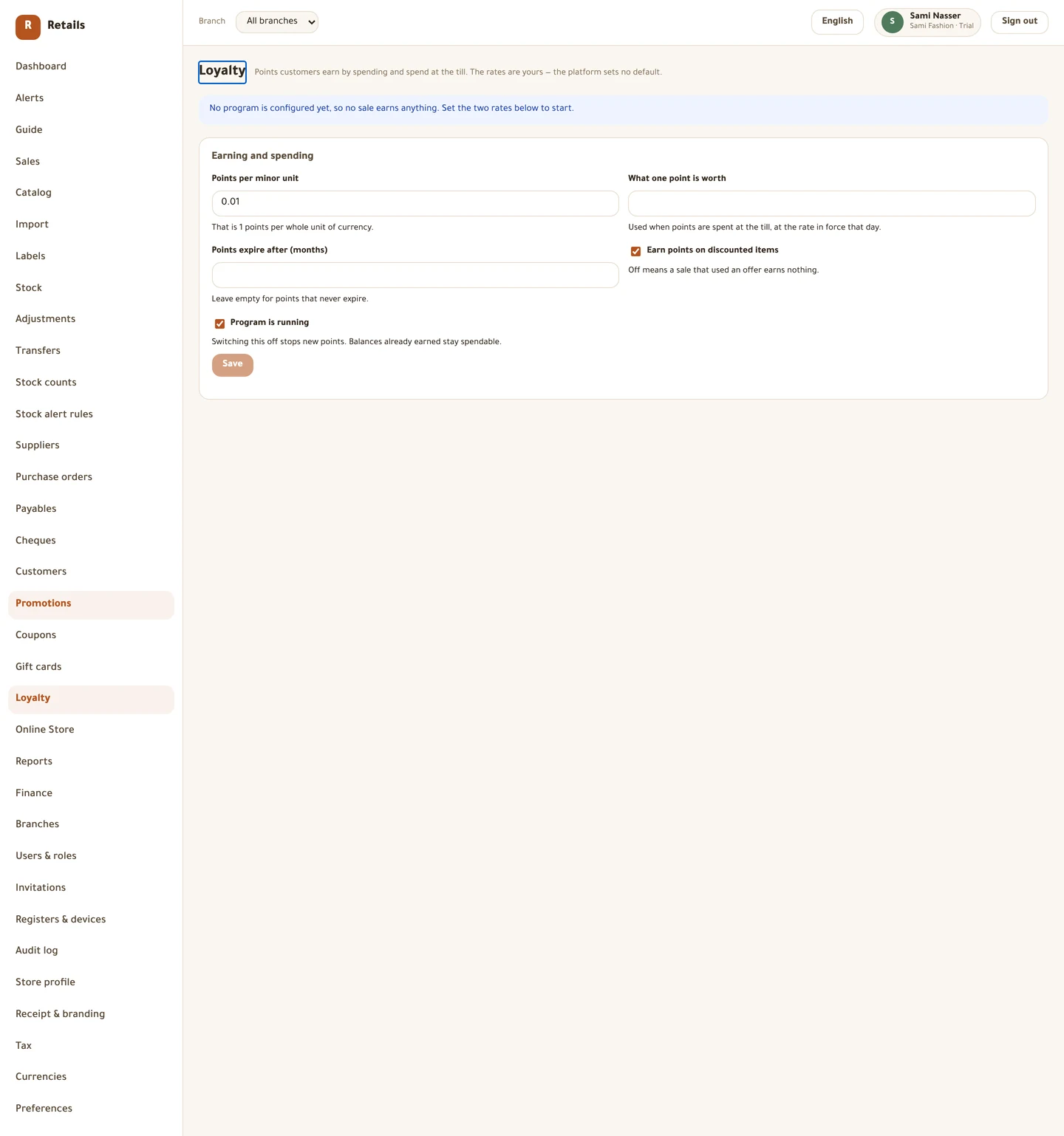
Loyalty
There is no default programme, on purpose — the rates are a decision about your shop's margin and no platform should pick them for you. Until you set the two rates, no sale earns anything, and the screen says exactly that.
Points per minor unit is what a customer earns as they spend, and the help line converts it for you into points per whole shekel. What one point is worth is used when points are spent. Points expire after (months) can be left empty for points that never expire.
Tiers are optional and the programme works without them. A customer sits in the highest tier their lifetime spend has passed.
Do this
- Open Loyalty in the menu.
- Set Points per minor unit and read the line underneath.
- Set What one point is worth.
- Decide Earn points on discounted items.
- Turn on Program is running and press Save.
- Add tiers with Add tier if you want them.
Before you move on
- A few customers saved, with phone numbers typed however was natural
- You know a duplicate phone is a warning you can override, not a refusal
- One offer built, tested in Try a cart, and left paused or resumed deliberately
- You know an offer does not fire at the till today
- Loyalty rates set, or deliberately left unset
- You know gift cards, store credit and points cannot be spent at the counter yet
Every picture on this page is a photograph of the real screen, taken from a running store.