Chapter 2 of 11 · 15 min
Your store's identity
The name, the tax, the cash the drawer takes and the paper the customer is handed.
Your store is named in both languages, VAT is set and applied by default to every product you create from now on, the till knows which notes it accepts, and the receipt says what you want it to say.
Five screens, in this order, and none of them takes long. Do them before you create a single product: a product created before a default tax class exists is stuck without one, and the base currency locks the first time you post a sale.
Name the store
This is the block that prints at the top of every receipt and every invoice, and that the online store reads its details from.
Do this
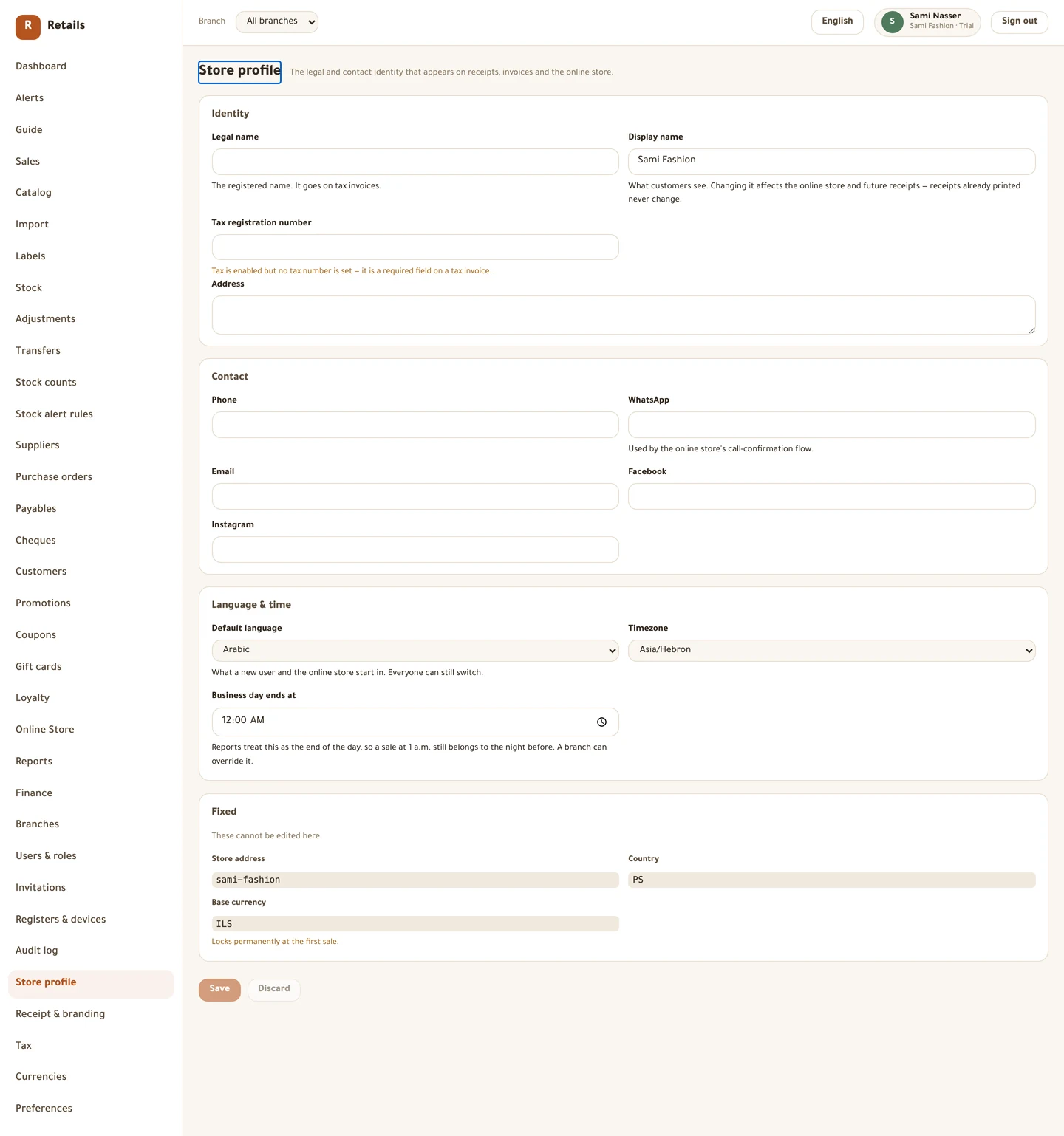
- Open Store profile from the side menu.
- Put your registered name in Legal name. That is the one that goes on tax invoices.
- Put the name customers know you by in Display name.
- Type your number into Tax registration number. While it is empty the screen tells you so, because it is a required field on a tax invoice.
- Fill in Address and, under Contact, Phone, WhatsApp and Email.
- Press Save.
Language, time, and when your day ends
Still on Store profile, under Language & time.
Do this
- Set Default language to Arabic or English. It is what a new user and the online store start in, and everyone can still switch.
- Set the Timezone.
Asia/Hebronfor the West Bank. - Set Business day ends at. Reports treat that hour as the end of the day, so a sale rung at one in the morning still belongs to the night before.
- Press Save.
Three things you cannot change here
The Fixed card shows them and says why. Store address is the short name in your web link, and it is unique across the whole platform. Country was chosen when the store was created.
Base currency is the one your accounts are kept in. Until your first sale it says "Locks permanently at the first sale". Afterwards it says "Locked — sales have been posted in it, and accounting is always in the base currency."
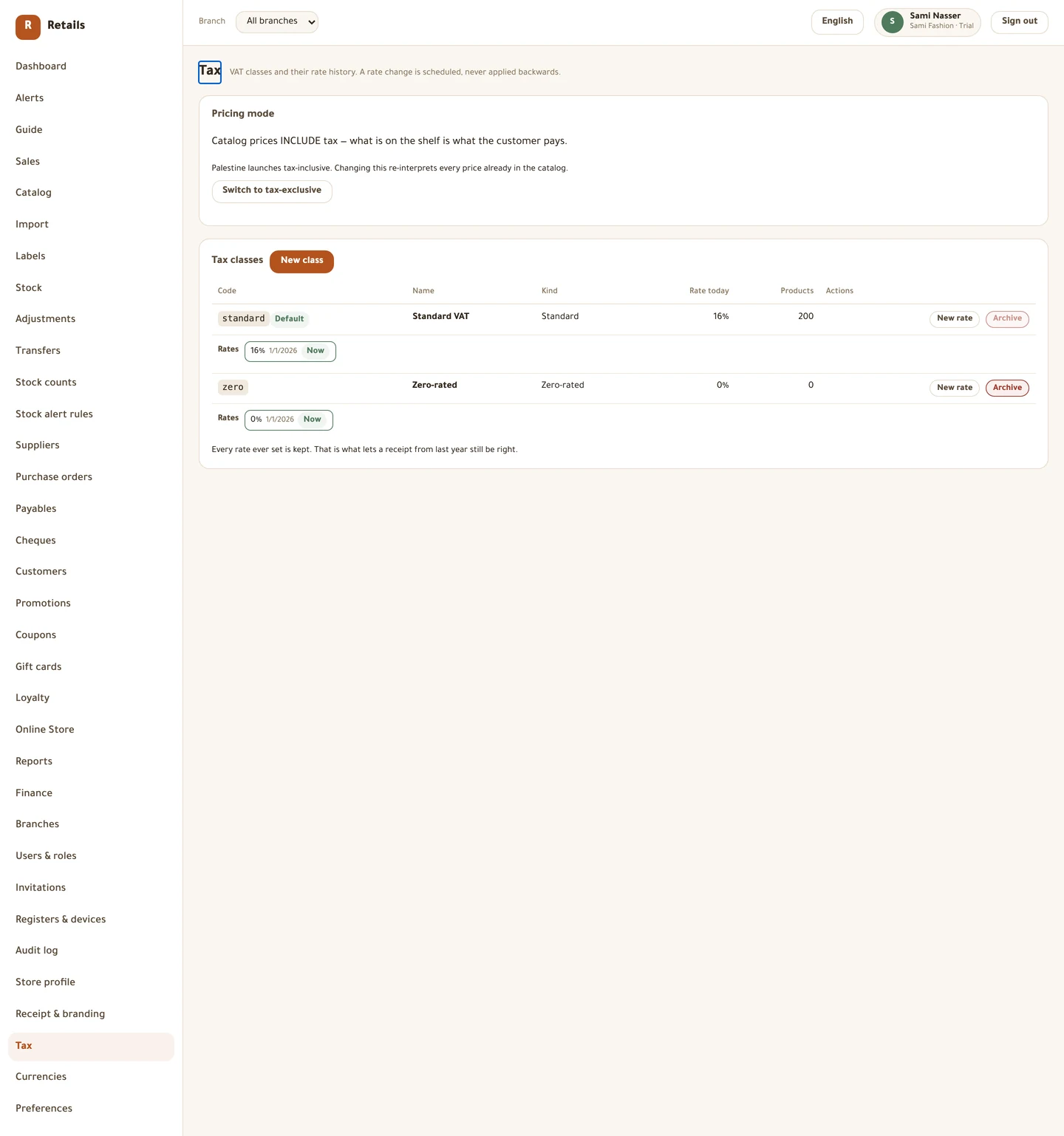
Set VAT to 16%
Palestine's standard VAT is 16%, and prices are tax-inclusive by default: the number on the tag is what the customer pays, and the tax is worked backwards out of it. That is what a Palestinian price tag already means, so leave the pricing mode alone unless you have a reason.
A brand-new store starts with no tax classes at all. Create the standard one before you create any products.
Do this
- Open Tax.
- Check the mode reads Catalog prices INCLUDE tax — what is on the shelf is what the customer pays.
- Press New class. Give it a Code, a name in both languages, and Kind = Standard.
- Set Rate % to
16and an Effective from date. - Tick Make this the default class, then press Save.
- Add a second class with Kind = Zero-rated if you sell anything exempt.
- To change a rate later, press New rate on that class's row — never edit the old one.
The cash the drawer takes
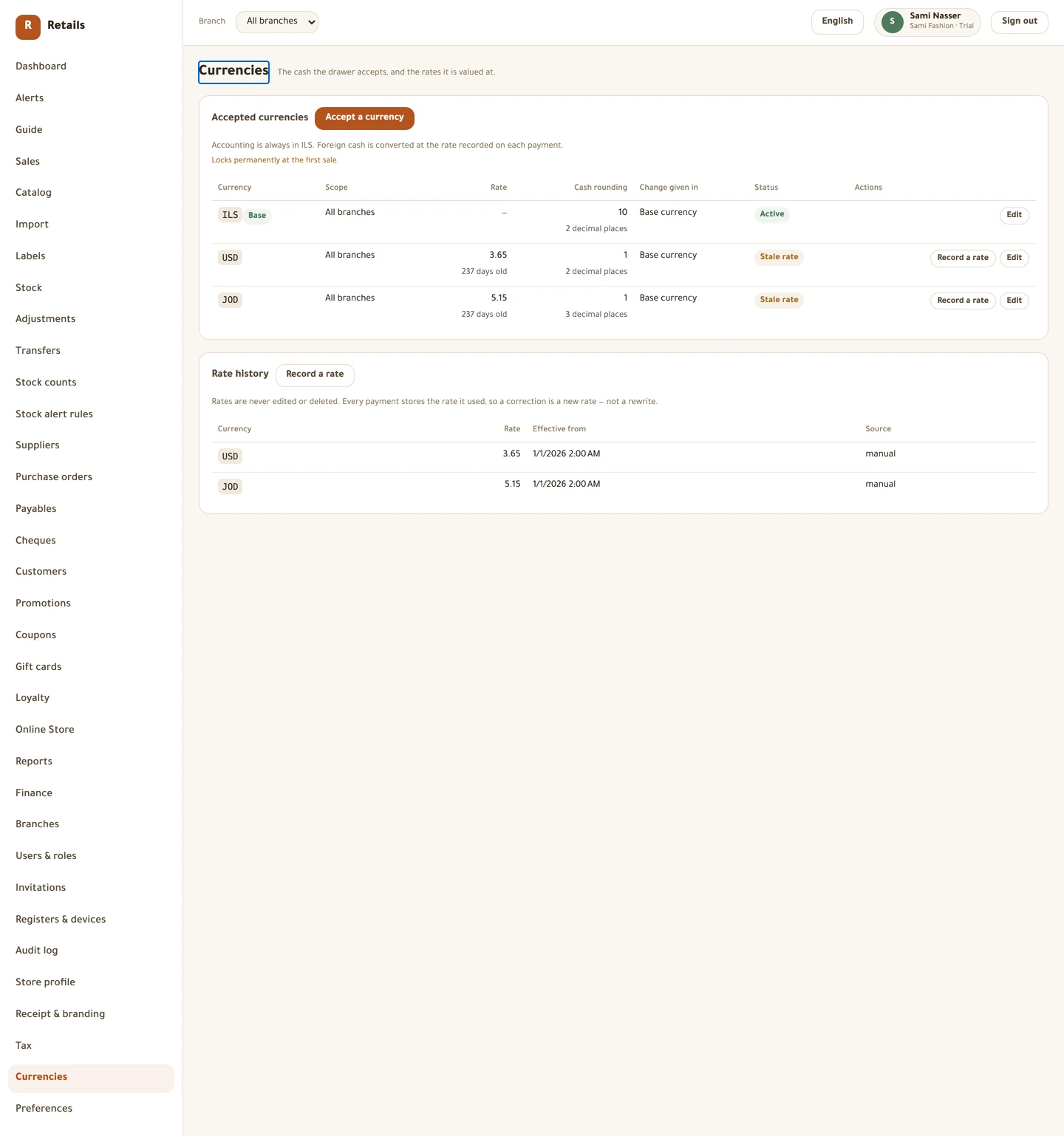
Your accounts stay in the base currency, but the drawer can take dollars and dinars. Every foreign payment records the currency, the amount, the rate used and the base equivalent, so a Z-report still adds up.
Do this
- Open Currencies.
- Press Accept a currency and choose one. Only currencies the platform knows how to value are listed.
- Leave Scope on All branches unless one branch takes something the others do not.
- Set Cash rounding in that currency's own smallest unit. Shekels round to
10— the nearest 10 agorot, because the 1 and 5 agorot coins are gone. Use1for no rounding, which is what dollars and dinars are set to. - Set Change given in. What a Palestinian till actually does with a dollar note is give change in shekels, so Base currency is the usual answer.
- Press Save, then press Record a rate on that row.
The receipt
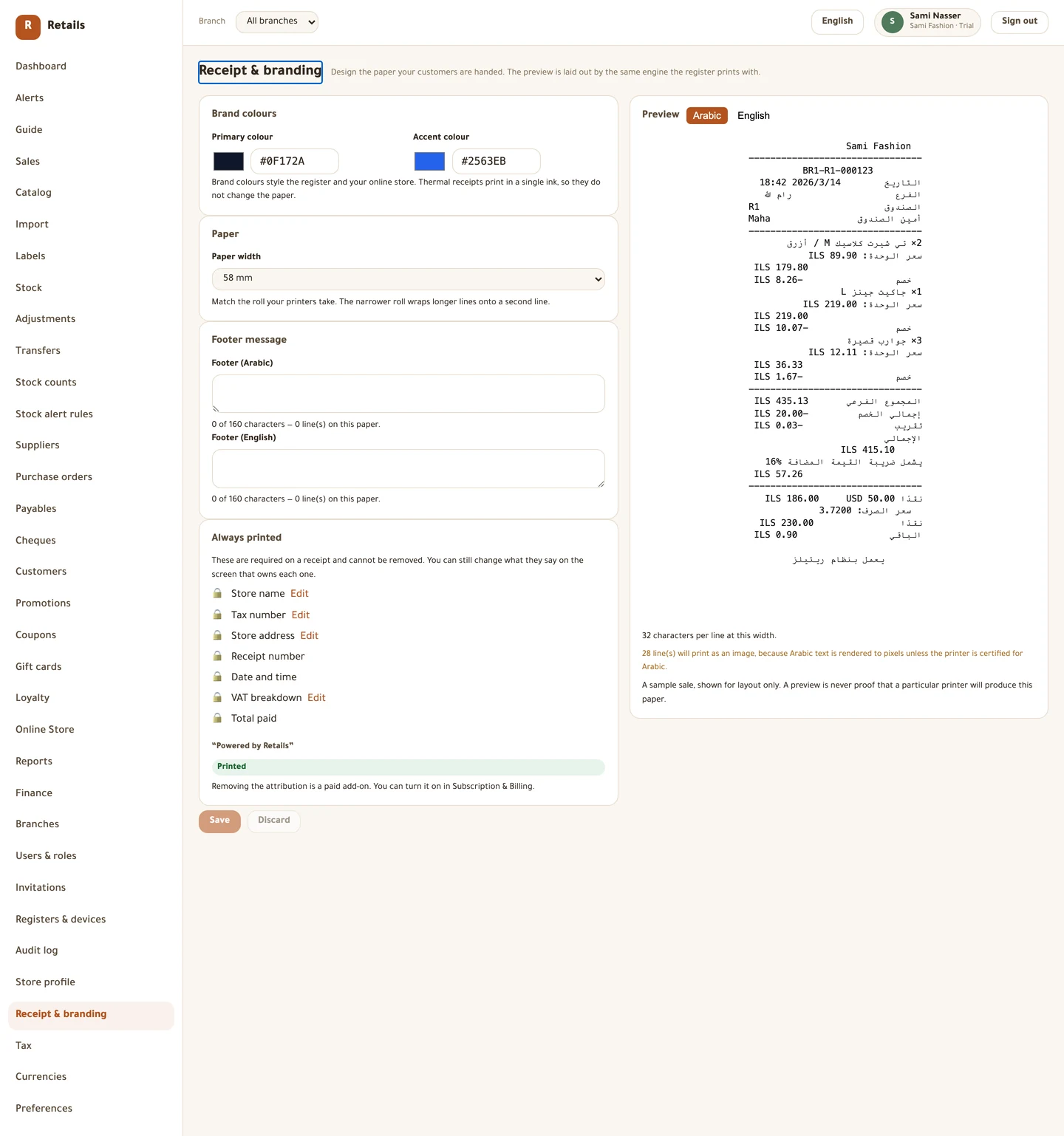
The preview on this screen is laid out by a copy of the same engine the register prints with, so you are looking at the real shape of the paper.
Do this
- Open Receipt & branding.
- Set Paper width to match the roll your printers take — 58 mm or 80 mm. The narrower roll wraps longer lines onto a second line.
- Write Footer (Arabic) and Footer (English). The hint under each counts your characters and tells you how many lines they take on that paper.
- Set your Primary colour and Accent colour if you want them. They style the register and the online store; a thermal receipt prints in one ink either way.
- Press Save.
How the shop sells
The defaults here are sensible. Read them once anyway — two of them decide what a cashier is allowed to do with a customer standing in front of them.
Do this
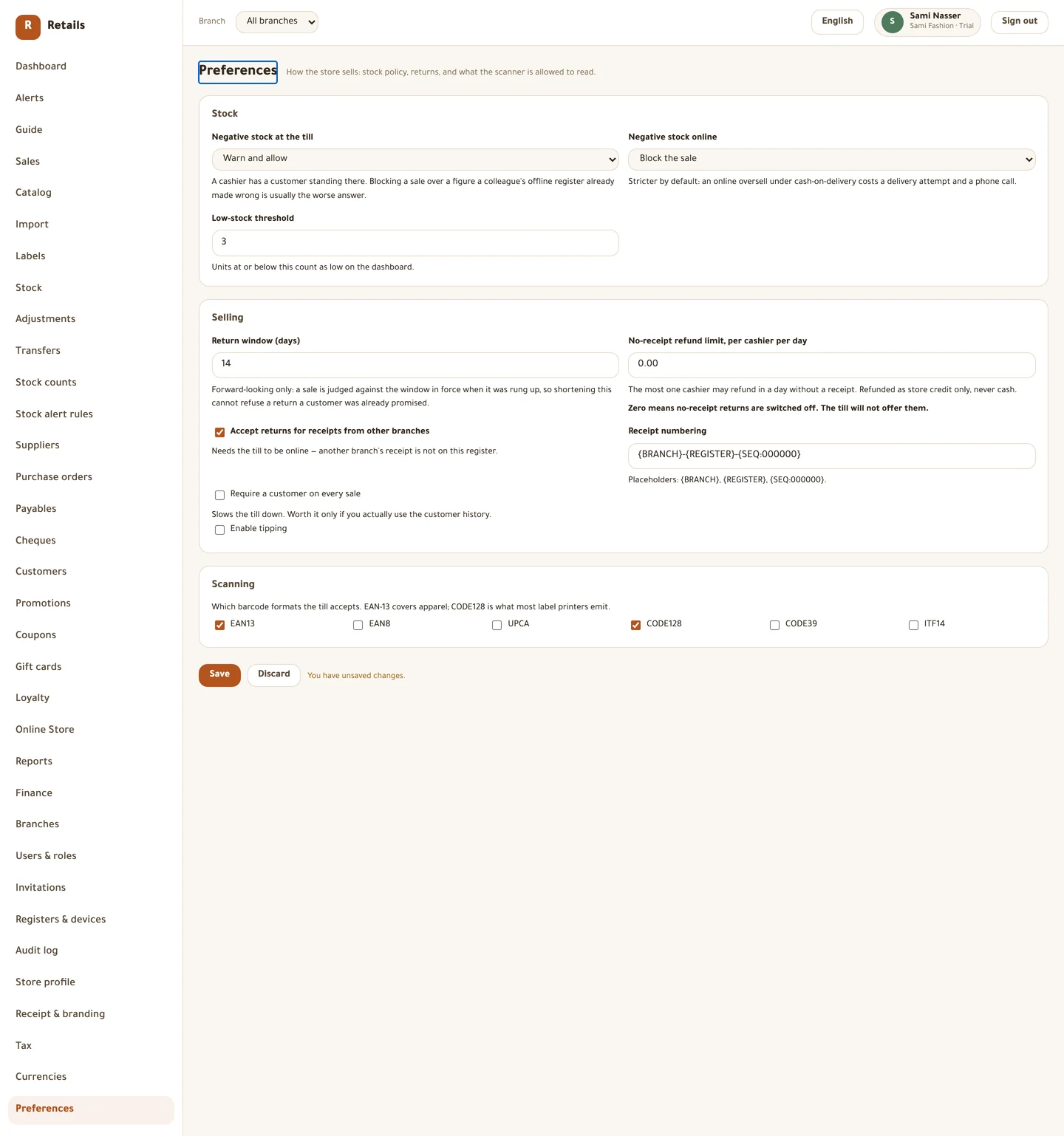
- Open Preferences.
- Set the Low-stock threshold. Units at or below it count as low on the dashboard.
- Set the Return window (days). It only looks forward: a sale is judged against the window in force when it was rung up, so shortening it cannot refuse a return a customer was already promised.
- Under Scanning, tick the barcode formats the till accepts. EAN-13 covers apparel; CODE128 is what most label printers emit. A till that accepts none cannot scan anything.
- Set No-receipt refund limit, per cashier per day if you want no-receipt returns at all. It ships at zero, and zero means off — the screen says so under the field.
- Press Save.
Before you move on
- Legal name, display name and tax registration number filled in
- Timezone and business-day cutoff set
- Base currency checked, before anyone rings a sale
- A standard tax class exists at 16% and is marked as the default
- Every currency you take has a recorded rate, so none of them shows Blocked
- Paper width matches your roll and the footer is written in both languages
Every picture on this page is a photograph of the real screen, taken from a running store.